Enhancements to Health and Monitoring Screen
Various enhancements have been made to the Health and Monitoring screen (Interfaces ➜ Health & Monitoring) in Stay.
Permissions
The following new permissions must be assigned to enable users to perform various operations in the Health and Monitoring screen.
-
Stay_IntegrationsAdminResend: Users with this permission assigned can perform retry for the failed transactions and access all the tabs in the screen.
-
Stay_IntegrationsHealthInsights: Users with this permission assigned can access all the tabs in the screen and view the details displayed.
-
Stay_IntegrationsReports: Users with this permission assigned can view and export reports from this screen.
These permissions are assigned to the following custom roles by default:
|
Role |
Permissions |
|---|---|
|
Stay_Integrations_Read_Only_Admin |
|
|
Stay_Integrations_Operations_Admin |
|
The following existing permissions have been removed as part of this enhancement:
-
Stay_ReadEagleEyeProperty
-
Stay_WriteEagleEyeProperty
Cloud Health Tab
-
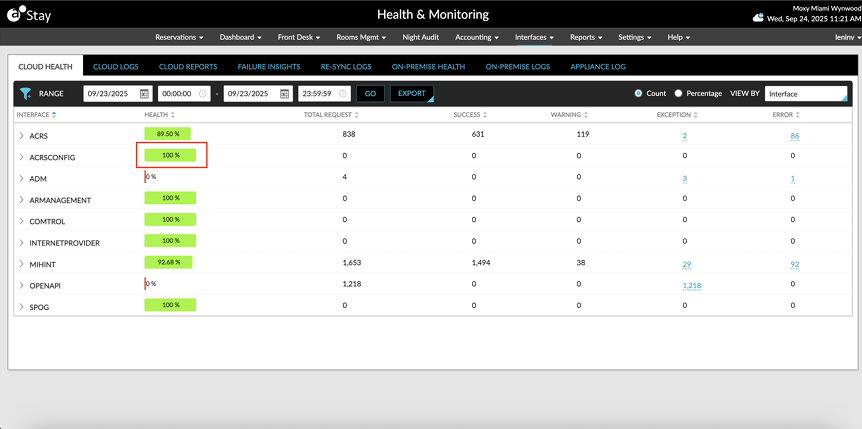
When the count of the total requests for an interface is 0, the health is displayed as 100% in the Heath column. Previously, the health was displayed as 0%.
-
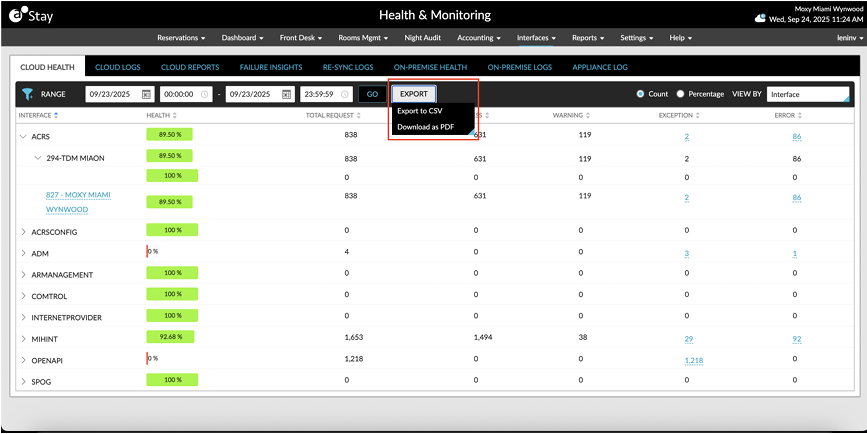
A new option, Export, has been added that allows users to export the details displayed in CSV and PDF formats.
Cloud Logs Tab
-
The Filter panel has been enhanced with searchable drop-down lists.
-
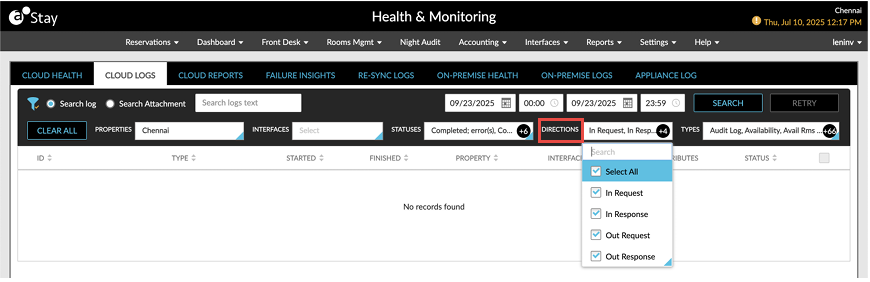
A new filter option, Direction, has been added that allows users to filter records based on the following directions of requests:
-
In Request
-
In Response
-
Out Request
-
Out Response
-
-
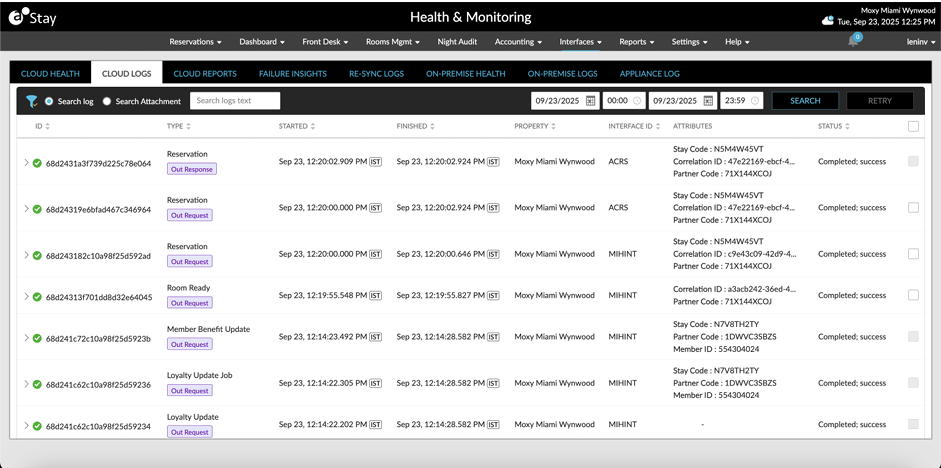
The type names displayed in the Type column have been modified as user friendly names.
-
A new column, Attributes, has been added that displays the attribute values of transactions such as the Correlation ID and Partner Code.
-
Users can search for a record using the attribute value.
-
New icons have been added to identify the success, failure, and warning status of transactions.
-
The directions are displayed in the Type column to help users understand the direction of the transactions.
-
The year will no longer be displayed in the Started and Finished columns.
-
Timestamps for the transactions have been added to the Started and Finished columns for accurate troubleshooting.
-
The Interface column has been renamed as Interface ID and displays a short name for the interface.
-
Pagination has been provided to display all available records. Previously only 1000 records were displayed.
-
A new button, Retry, has been added that allows users to reprocess eligible outbound transactions directly.
When users select the failed transactions and click on the Retry button, the Confirm Retry pop-up screen appears that prompts users to confirm if the selected transaction must be retried.
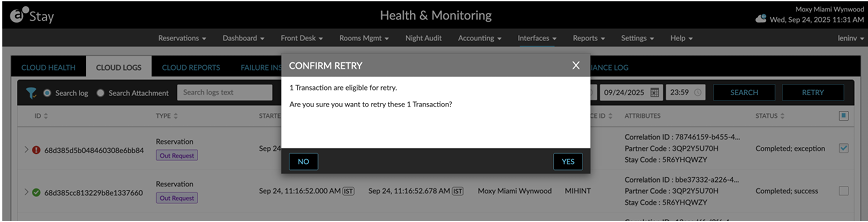
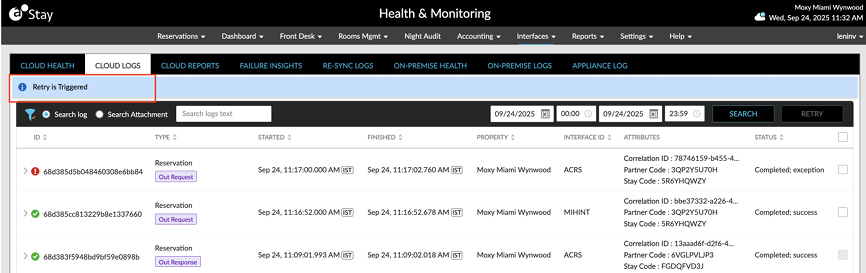
When users click Yes, the message, Retry is triggered, is displayed as a banner.
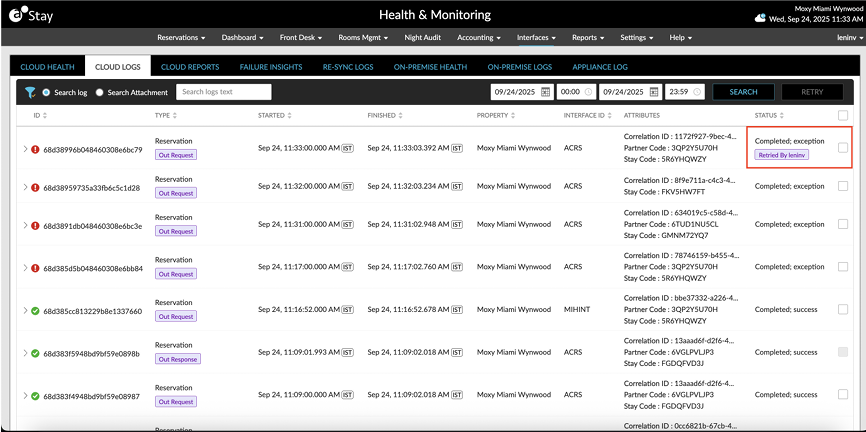
Once the retry is completed successfully, the username of the user who performed the retry is indicated in the Status column.
Retry is supported for the following messages and types, for ACRS and HINT:
-
Group - Out Request
-
Reservation - Out Request
-
AR Aging - Out Request
-
Folio NOC - Out Request
-
General Ledger - Out Request
-
House Account - Out Request
-
Inventory Blocks - Out Request
-
Loyalty Update - Out Request
-
Night Audit - Out Request
-
Physical Key - Out Request
-
Link Reservation Request - Out Request
-
Room Ready - Out Request
Cloud Reports Tab
A new tab, Cloud Reports, has been added. This tab provides a summary report of the inbound and outbound transactions with filter options to filter records based on the following:
-
Property
-
Interface
-
Date Range (maximum of 7 days)
Reports are available for both reservation and group transactions and cover both success and failure cases. Reports can be exported in both PDF and CSV formats.
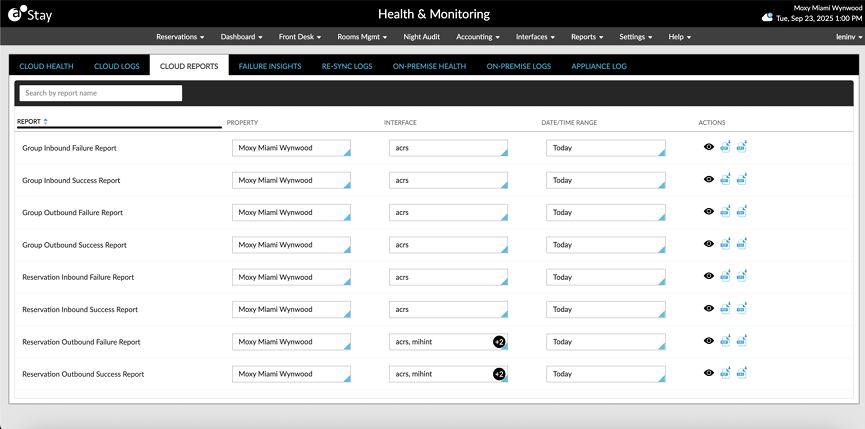
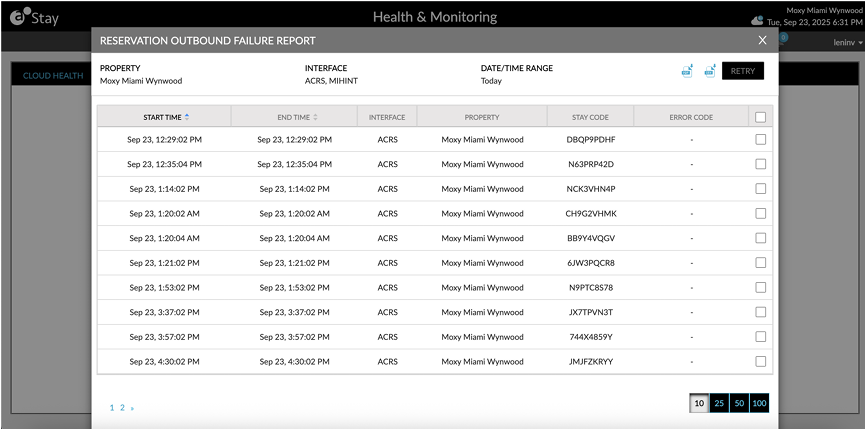
Once users view a failure report, they can perform a retry by clicking on the Retry button in the report pop-up screen.
Failure Insights Tab
The Property drop-down list in the Failure Insights tab displays the property name instead of the property ID.
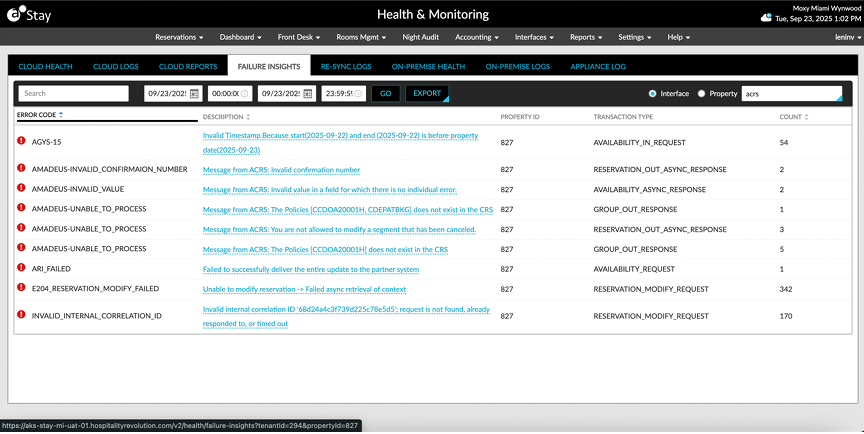
When users click on the description for an error, they are navigated to the Cloud Logs tab where they can view additional details about the transaction and perform a retry.